How to scan a QR code from an image or screenshot
To read a QR code already on your screen, save a screenshot and choose it in the KitLumi QR Code Scanner. The tool decodes one selected image in your browser and shows the text inside the code. It requires no camera permission or account; the file limit is 50 MB.
How do you do it?
- Save the screenshot as PNG or JPEG. Include the whole QR square and its surrounding blank margin.
- Open QR Code Scanner from Image, choose the file with Choose image, then select Scan QR code.
- Read the decoded text in the result panel. Check the destination before opening any decoded URL.
How do you read a QR code on the same phone?
Take a screenshot, open the scanner in your mobile browser, and select the saved image from the file picker. You do not need a second phone. This tool reads image files; it does not start a live camera scan.
What should a successful scan show?
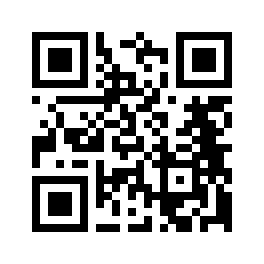
A QR code encoding https://kitlumi.com/ should return exactly https://kitlumi.com/. The scanner also reports the detected QR version. A code can contain plain text or Wi-Fi configuration instead of a web address, so a result without a link can still be correct.
QR payload: https://kitlumi.com/
Decoded text: https://kitlumi.com/
Does the QR scanner upload screenshots?
KitLumi decodes the selected image locally using jsQR. Image content and the decoded payload are not sent as analytics events. The website still loads its normal assets and may collect page-level analytics as described in the privacy policy.
Which of these 12 QR test images decode?
Checked on 2026-10-15 with jsQR 1.4.0, using inversionAttempts: attemptBoth, the same setting as the scanner. 7 fixtures returned their exact payload and 5 returned no code in the direct-pixel test.
All 12 images were also selected through the actual scanner’s file picker and decoded in Chrome on a desktop. The browser results matched the direct-pixel results for every fixture.
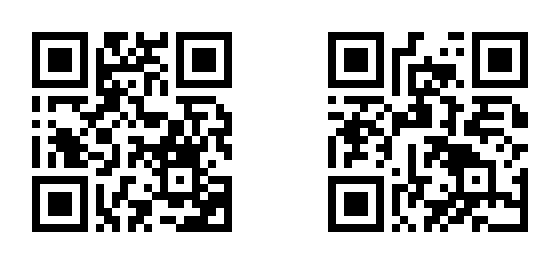
The URL fixtures encode https://kitlumi.com/. The plain-text image encodes KitLumi local QR sample. The two-code image contains that URL and KitLumi sample B. These controlled PNG fixtures are examples, not a success-rate benchmark for real photos or every phone.
The tiny and margin-free fixtures happened to decode. That is not a recommendation to remove margins or use tiny images. Low contrast, heavy blur, finder-pattern cropping, multiple codes, and the blank control failed in this set. Use a separate, clear image for each code.
| Image condition | Size | Observed result | Try the image |
|---|---|---|---|
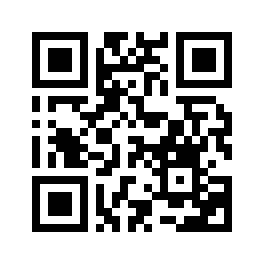
| Clear URL, 8 pixels per module | 264 × 264 px | Decoded exact payload | Download PNG |
| Small URL, 2 pixels per module | 66 × 66 px | Decoded exact payload | Download PNG |
| Tiny URL, 1 pixel per module | 33 × 33 px | Decoded exact payload | Download PNG |
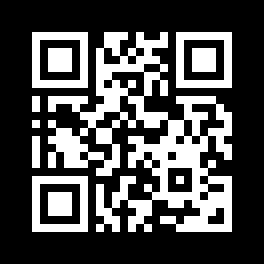
| White modules on black | 264 × 264 px | Decoded exact payload | Download PNG |
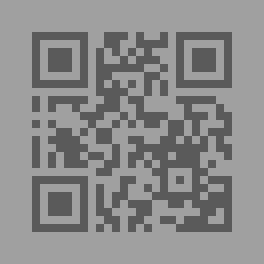
| Gray modules 90 on gray background 160 | 264 × 264 px | No QR code found | Download PNG |
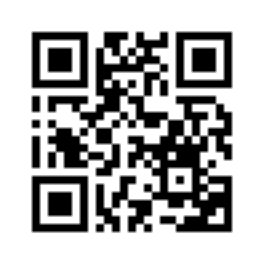
| Box blur, radius 1 pixel | 264 × 264 px | Decoded exact payload | Download PNG |
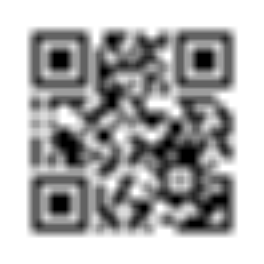
| Box blur, radius 6 pixels | 264 × 264 px | No QR code found | Download PNG |
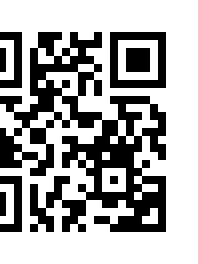
| Left quarter removed, including finder detail | 198 × 264 px | No QR code found | Download PNG |
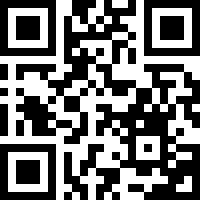
| No quiet-zone margin | 200 × 200 px | Decoded exact payload | Download PNG |
| Two separate QR codes in one image | 560 × 264 px | No QR code found | Download PNG |
| Plain-text payload | 264 × 264 px | Decoded exact payload | Download PNG |
| Blank image, no QR code | 264 × 264 px | No QR code found | Download PNG |



What can go wrong?
| Problem | What to try |
|---|---|
| No QR code found | Use the original screenshot. Keep the complete code and a blank border; avoid a tight crop through the outer modules. |
| Blurry or tiny code | Capture the source at a larger size. Enlarging an already blurred image cannot restore missing detail. |
| Several codes in one image | Crop to one code while preserving its margin. The tool returns one decoded result per scan. |
| Unsupported image or file too large | Save as PNG, JPEG, WebP, or AVIF under 50 MB. PDF and SVG files are not accepted by this scanner. |
Frequently asked questions
Can I scan a white QR code on a dark background?
The scanner tries normal and inverted codes. A clear image with enough contrast is still required; decoding is not guaranteed for every styled code.
Does decoding a QR code open its website?
No. The scanner displays the payload as text. Inspect the address before you choose to visit it.
References
Added 12 downloadable image fixtures, exact decoded payloads, failure cases, and a reproducible test record.
First published .